• HINDI
  •    
  • Saturday, 17-Jan-26 04:40:29 IST
Tech Trending :
* 🤖How OpenAI + MCP Servers Can Power the Next Generation of AI Agents for Automation * 📚 Book Recommendation System Using OpenAI Embeddings And Nomic Atlas Visualization

🧠 Building an Advanced AI Sentiment Analyzer with OpenAI and Streamlit

Contents

Table of Contents

    Contents
    🧠 Building an Advanced AI Sentiment Analyzer with OpenAI and Streamlit

    🧠 Building an Advanced AI Sentiment Analyzer with OpenAI and Streamlit

    A Zero-Shot Emotion Classification App Powered by GPT Models


    🚀 Introduction

    In today’s world, understanding emotions hidden in text—whether it’s customer feedback, social media comments, or product reviews—can make all the difference.

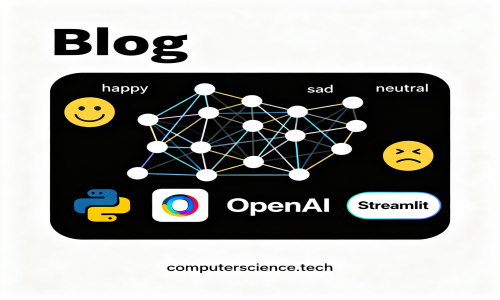
    Thanks to OpenAI’s GPT models and the simplicity of Streamlit, we can now build a real-time sentiment analyzer that not only detects sentiment polarity (positive/negative/neutral) but also classifies specific emotions like joy, fear, or anger — all without any training data!

    In this blog, we’ll create a beautiful, interactive web app using:

    • 🧩 OpenAI GPT models (GPT-3.5 / GPT-4 / GPT-4o)

    • 🎨 Streamlit for UI

    • ⚙️ Dynamic Emotion Classification


    🧰 What You’ll Learn

    ✅ How to use OpenAI’s Chat Completion API for emotion classification
    ✅ How to build an interactive Streamlit app with a modern design
    ✅ How to store and visualize sentiment analysis history
    ✅ How to use GPT in zero-shot classification settings


    🧑‍💻 Step 1: Setting Up the Project

    Let’s begin by installing the required libraries.

    pip install streamlit openai pandas

    Now, create a file named app.py.


    🧩 Step 2: The Core — GPT Sentiment Classifier Function

    We’ll define a helper function gpt_classify_sentiment() that takes a user prompt (text) and emotion labels as input.
    This function uses OpenAI’s ChatCompletion API to classify text into one of the given emotion categories.

    import openai import os def gpt_classify_sentiment(prompt, emotions, model="gpt-3.5-turbo", temperature=0.0, max_tokens=20): system_prompt = f'''You are an emotionally intelligent assistant. Classify the sentiment of the user's text with only one of the following emotions: {emotions} After classifying the text, respond with the emotion only.''' # Create OpenAI client client = openai.OpenAI() try: response = client.chat.completions.create( model=model, messages=[ {"role": "system", "content": system_prompt}, {"role": "user", "content": prompt} ], max_tokens=max_tokens, temperature=temperature ) result = response.choices[0].message.content.strip() return result if result else 'N/A' except Exception as e: print(f"Error during classification: {e}") return 'N/A'

    This small function turns GPT into an emotion detector capable of classifying text into any emotion categories you define!


    🎨 Step 3: Designing the Streamlit User Interface

    Streamlit allows us to quickly build a beautiful and responsive UI.
    We’ll use custom CSS to enhance visuals and layout.

    import streamlit as st import time # Set API key os.environ['OPENAI_API_KEY'] = 'your_openai_api_key_here' # Initialize session state if 'analysis_history' not in st.session_state: st.session_state.analysis_history = [] if 'total_analyses' not in st.session_state: st.session_state.total_analyses = 0

    💅 Custom CSS for a Professional Look

    We’ll add gradient headers, rounded containers, and elegant buttons.

    st.markdown(""" <style> .main-header { font-size: 2.5rem; font-weight: 700; color: #1f2937; text-align: center; margin-bottom: 2rem; background: linear-gradient(90deg, #667eea 0%, #764ba2 100%); -webkit-background-clip: text; -webkit-text-fill-color: transparent; } .sub-header { font-size: 1.2rem; color: #6b7280; text-align: center; margin-bottom: 3rem; } .input-container { background-color: #f8fafc; padding: 2rem; border-radius: 12px; border: 1px solid #e5e7eb; margin-bottom: 2rem; box-shadow: 0 1px 3px rgba(0,0,0,0.1); } .stButton > button { background: linear-gradient(90deg, #667eea 0%, #764ba2 100%); color: white; border: none; border-radius: 8px; padding: 0.75rem 2rem; font-weight: 600; font-size: 1rem; transition: 0.3s ease; } .stButton > button:hover { transform: translateY(-2px); box-shadow: 0 10px 15px rgba(0,0,0,0.1); } </style> """, unsafe_allow_html=True)

    🧭 Step 4: Adding Sidebar Controls

    Our sidebar lets users:

    • Choose models (GPT-3.5 / GPT-4 / GPT-4o)

    • Adjust parameters like temperature and max tokens

    • View quick metrics (API Status, Total Analyses, Model Type)

    with st.sidebar: st.markdown("### ⚙️ Configuration") model_choice = st.selectbox("Select OpenAI Model:", [ "gpt-3.5-turbo", "gpt-4", "gpt-4o", "gpt-4o-mini" ]) temperature = st.slider("Temperature:", 0.0, 1.0, 0.0) max_tokens = st.slider("Max Tokens:", 10, 100, 20) st.metric("Total Analyses", st.session_state.total_analyses)

    🧾 Step 5: Input and Emotion Selection

    We allow the user to define their own emotion categories dynamically.

    col1, col2 = st.columns([2, 1]) with col1: st.markdown("### 📝 Text Input") prompt_text = st.text_area("Enter your text:", height=200) with col2: st.markdown("### 🎭 Emotion Categories") emotions_input = st.text_area( "Define emotions:", height=200, value="Happy, Sad, Angry, Fearful, Disgusted, Surprised, Neutral" )

    🧮 Step 6: Running the Analysis

    When the user clicks Analyze Sentiment, GPT processes the text using the given parameters.

    if st.button("🔍 Analyze Sentiment", use_container_width=True): if prompt_text.strip(): with st.spinner("🤖 Analyzing..."): result = gpt_classify_sentiment( prompt_text, emotions_input, model=model_choice, temperature=temperature, max_tokens=max_tokens ) st.success(f"🎯 Detected Emotion: **{result}**") st.session_state.total_analyses += 1 else: st.warning("⚠️ Please enter some text.")

    📚 Step 7: Tracking and Visualizing History

    Every sentiment analysis is stored in the app’s session.
    We can display a history log and visualize the most frequent emotions.

    import pandas as pd if st.session_state.analysis_history: st.markdown("### 📊 Analysis History") data = pd.DataFrame(st.session_state.analysis_history) st.dataframe(data) st.markdown("### 📈 Emotion Frequency Chart") emotion_df = data['result'].value_counts().reset_index() emotion_df.columns = ['Emotion', 'Count'] st.bar_chart(emotion_df.set_index('Emotion'))

    🌟 Step 8: Add a Beautiful Header and Footer

    st.markdown('<h1 class="main-header">AI Sentiment Analysis</h1>', unsafe_allow_html=True) st.markdown('<p class="sub-header">Advanced Zero-Shot Emotion Classification with GPT</p>', unsafe_allow_html=True) st.markdown(""" <hr> <div style='text-align:center; color:#6b7280; padding:1rem;'> <p>Powered by OpenAI GPT • Built with Streamlit</p> <p>Advanced AI-powered sentiment analysis and emotion classification</p> </div> """, unsafe_allow_html=True)

    🧠 Example Output

    Input TextEmotion CategoriesPredicted Emotion
    “I just got promoted today!”Happy, Sad, Angry, Fearful, SurprisedHappy
    “The food was terrible and cold.”Happy, Sad, Angry, FearfulAngry
    “I can’t believe it’s finally happening!”Excited, Nervous, Surprised, RelievedExcited

    ⚙️ Final Thoughts

    With just a few lines of Python, you’ve built an intelligent emotion classifier that:

    • Uses GPT models for context-aware understanding

    • Runs interactively in a beautiful Streamlit UI

    • Tracks and visualizes emotion trends dynamically

    You can easily extend this project to:

    • Analyze customer reviews in real-time

    • Integrate with chatbots for emotion-aware responses

    • Perform sentiment monitoring on social media feeds


    🏁 Next Steps

    ✅ Deploy on Streamlit Cloud or Render
    ✅ Add confidence scores using GPT reasoning
    ✅ Add voice input for speech emotion analysis